
Unlock the potential of Adobe Premiere Pro by learning how to create and manipulate Adjustment Layers in your video editing projects. Dive into the specifics of adding a "black and white" effect and understand how to master the Opacity line to transition your video from color to black and white and back again.
Key Insights
- The video tutorial focuses on creating Adjustment Layers in Adobe Premiere Pro.
- It explains how to add a "black and white" effect to the Adjustment Layer.
- The tutorial demonstrates the use of the Opacity line to gradually transition the video from color to black and white.
- The video will return to color before transitioning back to black and white, showcasing the versatility of Adjustment Layers.
- Learning to manipulate the Adjustment Layer over only one clip is part of the tutorial's content.
- Mastering these techniques can enhance the quality and creativity of your video editing projects.
Color Correction Workflow
-
Apply Lumetri
Effects → Lumetri Color, drag onto clip or adjustment layer.
-
Basic Correction
White balance and exposure first — get neutral before grading.
-
Creative Look
Curves and Color Wheels for the mood you want.
-
Match Across Clips
Save as preset, apply to similar shots for consistency.
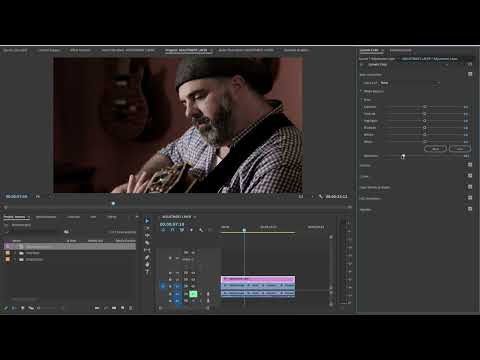
In this video, we will learn how to make an Adjustment Layers in Premiere Pro

We look at adding a “black and white” effect to the Adjustment Layer and then have the video gradually return to color, then back to black and white. We will accomplish this by using the Opacity line. We will also manipulate the Adjustment Layer over one clip only.
Video Transcription:
Full Video Transcript
Introduction to Adjustment Layers
Hello, this is Margaret with Noble Desktop, and today I will be reviewing the adjustment layer in Premiere Pro. An adjustment layer is an empty clip that goes over your entire timeline, usually, and in that clip you can put whatever effect you'd like. Anything that's underneath the adjustment layer will have that effect on it.
It's a very useful tool. Instead of dropping your effects on each individual clip, you have the option of just having it uniformly over everything. You can have many adjustment layers, and you can have many different effects on the same adjustment layer.
Creating an Adjustment Layer
We're going to look at a very basic use of adjustment layers. I'd like this to be black and white, and maybe I'll turn it back to color gradually, and then maybe back to black and white. So how do you find an adjustment layer? As in everything in Premiere Pro, there are several ways of doing the same thing.
My favorite way is to go to the new item icon and go over to adjustment layer. The adjustment layer has read your timeline, so you don't need to worry about this unless for some reason you'd like to change that. Just say okay. Another way of getting an adjustment layer is to control-click in your browser area and say new item, adjustment layer. I'll just put this in the trash. And yet another way: say File, New, Adjustment Layer. Here's your adjustment layer now in your browser.
Applying Effects to the Adjustment Layer
I'm going to go ahead and just drop that right over my clip. I'm going to spread it over. Is there any change? I'm actually going to mute this for a minute. Is there any change on this? No, because nothing is on the adjustment layer.
So you might have noticed that I have my color workspace open. That's because when I use black and white, I prefer to use the basic correction to achieve black and white, and I'll show you why. Here's saturation. If you take it away, you essentially are creating black and white. So I'm going to move this lever all the way down to zero, and now I have black and white.
The reason I like to work in the basic correction mode is because I can crush the blacks a bit, boost the exposure, maybe boost the shadows—just different things that you may want to look at here to refine your particular style of black and white.
Isolating Adjustments for Specific Clips
So this clearly is over everything. Now he might be a little too dark. This is a pretty dark shot. Maybe I'd like to change the adjustment layer just to suit this clip. So you might remember the razor tool—the shortcut is C. So I'm going to say C for cut and make it cut right here, and then one right here. I'm going to go back to V, or the pointer.
So now I've isolated the adjustment layer so it's just affecting the clip of the dark shot. So on that adjustment layer, maybe I'm going to boost the blacks a little because I want more definition in his hair. Maybe I'll increase the exposure a bit. That's pretty good. So maybe just that little touch-up was enough.
Adjusting Opacity for Gradual Transitions
So now I had mentioned going back to color. Let's look at that really quickly. What would be an easy way of doing it? The easiest way of doing it is to lower the opacity of the adjustment layer. Whenever you're looking at any clip on your timeline, you're looking at a fully opaque clip.
So how do you adjust the opacity of anything? If I were right now to do Command Plus, you might notice that my video gets larger. Command Minus makes it smaller. If I just want to make one track larger, I could click right between the toggle track output and the clip itself, and that makes just that one track larger instead of all of your video.
Now you might notice this white line that's appeared when I've made the track larger. That's your opacity line. If I lower the opacity line of a video clip, that video disappears. Here it comes a little bit more, a little bit more, and now it's fully opaque. So if I lower the opacity line of an adjustment layer that has a black and white effect on it, the more I lower it, the less of that effect you're going to see until you don't see anything.
Using the Pen Tool for Keyframe Adjustments
I want this to gradually go back to color, then maybe gradually go back to black and white. So what do I need to do that? I need another tool, and that would be the pen tool—P for pen. So I'm going to make a point at the adjustment layer and another point next to it, both of them on the opacity line. Two points on the opacity line of the adjustment layer.
I'm going to lower this all the way. So now we have black and white, and we have gradually going back to color. I want to see more gradual, so then I'll make a larger ramp there—more gradual. And now maybe I want it to be abruptly back to black and white. I could just make this boom—it'll just come really fast. So that's using the pen tool to create changes in your adjustment layer.
Now if for some reason you do not have this opacity line on your video clips—adjustment layer is an example of a video clip—that's because you do not have "Show Video Keyframes" selected.
Stacking Multiple Adjustment Layers
So maybe on the last shot I would like to have another adjustment layer. There it goes. I'll just put this only on this clip, make it flush with it completely. And on this top one, I'll make it a nice magenta tint. Now if I were to shut this off, you'll see it's just black and white. If I were to shut off the black and white, this is what it looks like.
So this adjustment layer is merging with the other adjustment layer. They're working together. And like anything else, maybe I just want a little bit of it. I can lower the opacity of that and have just a tiny tint on that top adjustment layer. It doesn't have to be gradual—it could be a uniform opacity adjustment.
Conclusion
That's all for this tutorial. I hope you've enjoyed learning how to use the adjustment layer in Premiere Pro. This has been Margaret for Noble Desktop.


