Discover how to streamline data work with the Consolidation function in Excel, a key tool covered in Noble Desktop's NYC Excel classes. This function allows you to consolidate information from multiple sheets into a single summary, ideal for managing data from different divisions of a company.
Key Insights
- The Consolidate function in Excel is utilized to combine data from multiple worksheets into a single summary sheet, making organization and analysis more efficient.
- The function can consolidate not just one value, but multiple tables, which is helpful for managing large sets of data.
- Creating a summary using the Consolidate function involves selecting the appropriate data ranges from each worksheet and adding them to the "All references" box.
- The Consolidate function accommodates for labels in the left column, ensuring they are not considered during sum calculations.
- "Create links to source data" is a useful option that allows for automatic updates in the summary when changes are made in the original data sheets.
- Noble Desktop's NYC Excel classes offer extensive training on the Consolidate function, along with other powerful Excel tools.
Consolidation Workflow
-
Pick Destination
Select the cell where consolidated data will land.
-
Data > Consolidate
Open the Consolidate dialog; pick a function (Sum, Count, etc.).
-
Add References
Add each source range across sheets or workbooks.
-
Choose Labels
Use top row and/or left column for labels in the result.
Consolidating data in Excel is covered extensively in our NYC Excel classes. For those outside New York, find and compare Excel classes near you or Excel courses online.
Consolidation
Consolidate function. This function allows you to consolidate information across multiple sheets.
We're not just consolidating one value, but we can actually consolidate multiple tables.
In our example here, we have our summary sheet, and then we have four tabs that contain different divisions. Consolidate 1 contains the Australian division, Consolidate 2 is the European division, Consolidate 3 is the North American division, and Consolidate 4 is the South American division.

I would like to add up all the values from these four different worksheets and come up with a summary right here in the Consolidation tab.
Creating a Summary
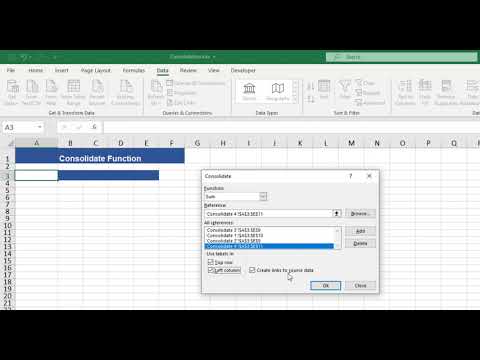
In order to do that, I'll start by clicking on the Data tab. If I'm not already there, go to the Data Tools group, and then I'll choose Consolidate. This dialog box displays, and you'll take a look at all the options and see which are appropriate for what you want to do.
Like I said earlier, I would like to sum all the values, so I'm going to choose SUM. I also have other types of calculations that I can perform, but I'll stick with SUM.
When it comes to reference, I need to select and add those ranges into the "All references" box. You can imagine that you're going grocery shopping, and when you go into a supermarket, there's a little basket that you can pick up to add your items before checkout. So you'll add your items to that basket right before checkout, and then you'll check those items out, and then that will complete the process.
We're going to do sort of the same thing. So I'll click on Reference, and I'll go and pick up the first division. I'll go to Consolidate 1. I want to pick up the Australian division. I'm going to select starting from the headers, and I'm going to go down to the Totals, and then I'm going to choose Add.
Then I want to head over to Consolidate 2. The nice thing about this is if the range you selected before is the same size as the range on the next worksheet, then you don't have to do anything. If it isn't, then you'll have to reselect and make sure you're selecting the same type of range, top and bottom.
Now that I've done that, I'll click Add. I'll go to Consolidate 3. There is that fortunate situation I was talking about. Everything is selected and all I have to do is click Add. And then finally, I'll choose Consolidate 4, and I need to extend this to include the Totals, because that's what I've been doing all along. I'll click Add.
Extra Options
Now, there are a couple of options here. I can choose "Left column" if I have labels in the left column. This means that these values won't be considered when it comes to summing up the values, so I'll click that checkbox.
I already have this option checked, "Create links to source data." That's going to be useful if you need to update any of the information in the other sheets. It will automatically update the summary when you make an update to any values in the four sheets that we've selected.
Now I can click OK, and now I have a summary for Quarters 1,2, 3 and 4. If I wanted to drill down, I could click on the plus sign and see the individual values that make up the total for Accessories. Unfortunately, I won't be able to see where the information is coming from. You just get the name of the sheet that you're currently on, but you do not see the name of the sheet where it came from.
Updating Values
But let's say we did want to check the ability of this consolidated table, the ability for it to update our values. Before we go, take a look at Hardware. You see currently it's at 900. I'm going to go to Consolidate 1, and I'm going to increase the price for Hardware by $100, so I'll go from 200 to 300.
Now, according to this, according to the option that we selected, that value should update our Consolidation summary. So I'm going to click back on Consolidation, and you'll see we've gone from 900 to 1,000.
Recap
So that is the Consolidate function. It's very useful if you need to consolidate multiple sheets into one and have one summary worksheet.
Video Transcription:
Full Video Transcript
Introduction to the Consolidate Function
The consolidate function allows you to consolidate information across multiple sheets. We're not just consolidating one value, but we can actually consolidate multiple tables. In our example here, we have our summary sheet and then we have four tabs that contain different divisions. Consolidate one contains the Australian division, consolidate two is the European division, consolidate three is North American, and consolidate four is the South American division.
I would like to add up all the values from these four different worksheets and come up with a summary right here in the consolidation tab. In order to do that, I'll start by clicking on the Data tab if I'm not already there, go to the Data Tools group, and then I'll choose Consolidate.
Consolidate Dialog Box Options
This dialog box displays and you'll take a look at all the options and see which are appropriate for what you want to do. Like I said earlier, I would like to sum all the values, so I'm going to choose Sum. I also have other types of calculations that I can perform, but I'll stick with Sum.
When it comes to reference, I need to select and add those ranges into the All References box. You can imagine that you're going grocery shopping, and when you go into a supermarket there's a little basket that you can pick up to add your items before checkout. You'll add your items to that basket right before checkout, and then you'll check those items out to complete the process. We're going to do sort of the same thing.
Adding Reference Ranges
I'll click on Reference and I'll go and pick up the first division. I'll go to Consolidate One. I want to pick up the Australian division. I'm going to select starting from the headers and I'm going to go down to the totals, and then what I'm going to do is choose Add.
Then I want to head over to Consolidate Two. A nice thing about this is if the range you selected before is the same size as the range on the next worksheet, then you don't have to do anything. If it isn't, then you'll have to reselect and make sure you're selecting the same type of range top and bottom. So now that I've done that, I'll click Add.
I'll go to Consolidate Three. There's that fortunate situation I was talking about—everything is selected and all I have to do is click Add. Then finally I'll choose Consolidate Four, and I need to extend this to include the totals because that's what I've been doing all along. I'll click Add.
Configuration Options
Now there are a couple of options here. I can choose Left Column if I have labels in the left column. This means that these values won't be considered when it comes to summing up the values, so I'll click that checkbox.
I already have this option checked: Create Links to Source Data. That's going to be useful if you need to update any of the information in the other sheets. It'll automatically update the summary when you make an update to any values in the four sheets that we selected. So now I can click OK.
Viewing and Updating Consolidated Data
Now I have a summary for quarters one, two, three, and four. If I wanted to drill down, I can click on the plus sign and see the individual values that make up the total for accessories. Unfortunately, I won't be able to see where the information is coming from. You just get the name of the sheet that you're currently on, but you do not see the name of the sheet where it came from.
Let's say we did want to check the ability of this consolidated table to update our values. I'll go over to Consolidate and take a look at Hardware. You see currently it's at 900. I'm going to go to Consolidate One and I want to increase the price for Hardware by $100, so I'll go from 200 to 300.
According to the option that we selected, that value should update our consolidation summary. So I'm going to click back on Consolidation, and you'll see we've gone from 900 to 1,000. So that is the Consolidate function—very useful if you need to consolidate multiple sheets into one and have one summary worksheet.
